
CLEO offers 2 main ways to perform a partial close on your position:
- a manual partial close of your position – closing 20% of your BTC long
- one of your Take Profits or Stop Losses are reached and overall position size is smaller than when you first opened it
Protections Stay Intact – Even After You Partially Close
On the CLEO trading platform, when you partially close a position, your original stop loss (SL) and take profit (TP) protections do NOT automatically adjust to the new, smaller position size. This is because of the complexity that comes with multiple protections.
The platform prompts you to “Sync” the protections to the new position size. You can get this done with a single click.
Make sure you check your protections after partial closes to be sure you’re happy with the amount. You also need to sync them to move them on the chart if you wish to do so.
Note that one of multiple Stop Loss or Take Profit being hit is also considered a partial close.
What This Means for You
-
If you manually close part of your position, your remaining SL and TP will still be protecting the original amount, but work on the smaller amount. However if your protection closest to price is larger than the tottal position amount, and is one of many protections, it will close your entire position.
-
The other reason to tweak the amounts is if you want to move them on the chart, or want to add more protections.
The Sync Function
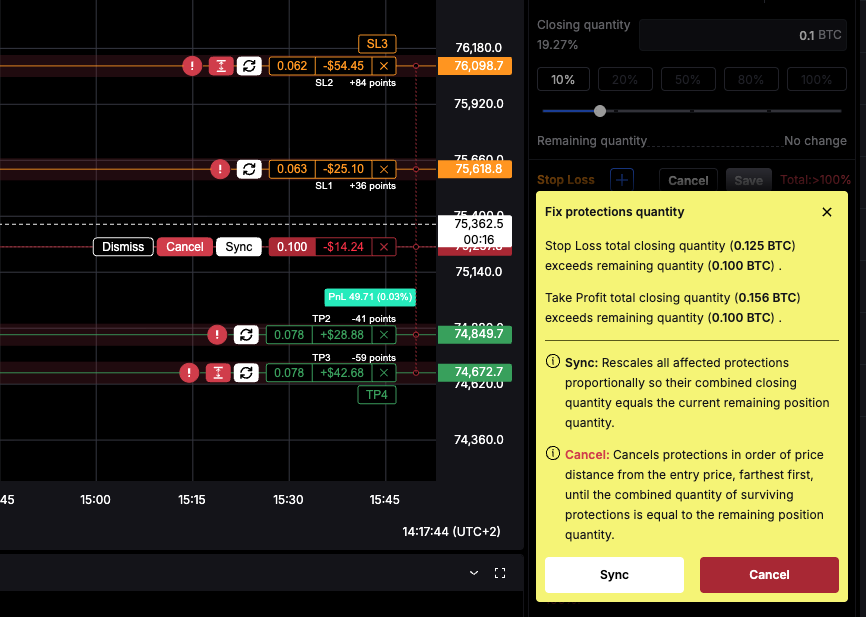
CLEO will prompt you to Sync your protections whenever the total closing quantity exceeds your remaining position size. A single click rescales all your protections proportionally to match the new position size. This applies to web and the mobile app.
You don’t have to Sync, but here’s when you’d want to:
- You want to move protections on the chart
- You want to keep the original proportions of your protections (eg. 33%/33%/33%)
- You want the quantities to accurately reflect your current position size
There are 3 actions you can take when you’re given the Sync popup:
- Sync – Rescales all affected protections proportionally so their combined closing quantity equals the current remaining position quantity. If you had them split 20%/80%, you’ll get the same split now.
- Cancel: – Cancels or trims protections in order of price distance from the entry price, farthest first, until the combined quantity of surviving protections is equal to the remaining position quantity. It’s all marked on on the chart, you can check the values by hovering on the button so you know what to expect.
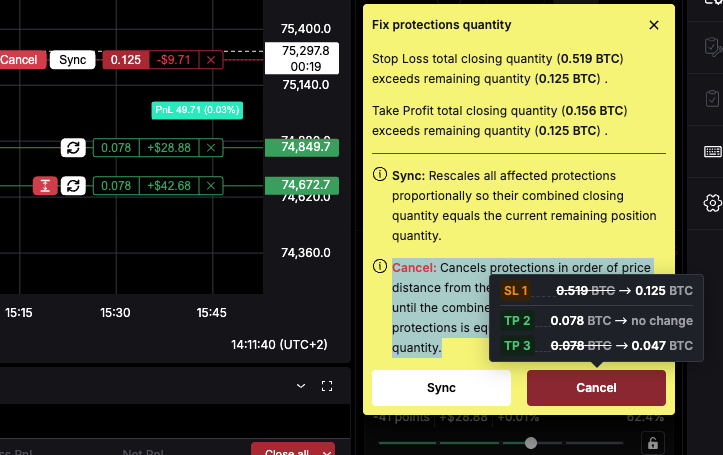
3. Close the popup – there will be no changes to protections and no sync will take place.
Sync on Mobile App
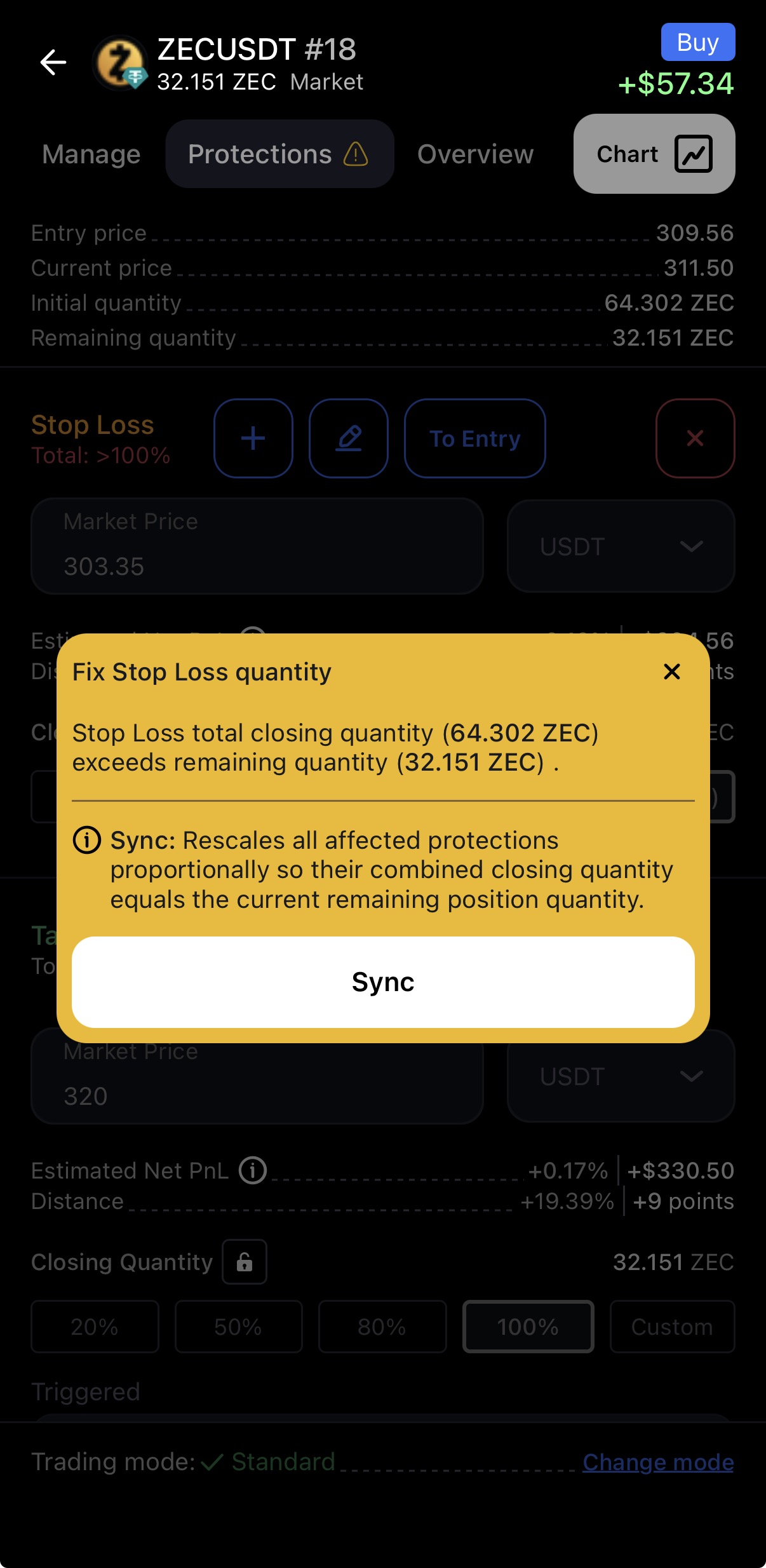
After a partial close on mobile you get the Sync option when you go to the Protections tab in the position. There will be an exclamation mark announcing this action. You have the alternatives to accept the sync or not, so option #2 above is not available yet.
A Practical Example
You open a 10 ETH long with:
- SL1 = 5 ETH, SL2 = 5 ETH
- TP1 = 5 ETH, TP2 = 5 ETH
You then manually close 5 ETH (50% of your position). Your remaining position is now 5 ETH, but the protections on each side still total 10 ETH, at 5 ETH each. So if SL1 or TP1 are reached it will close your entire position.
If you want to adjust them, hit Sync – CLEO will rescale each protection to 2.5 ETH, matching your 5 ETH remaining position.
The same applies if SL1 gets hit instead: your position drops to 5 ETH, and if you want to move or add protections, Sync first to bring the quantities in line.
CLEO will prompt you to Sync your protections whenever the total closing quantity exceeds your remaining position size. A single click rescales all your protections proportionally to match the new position size.